
Introduction
In today’s fast‑paced work environment, productivity tools that harness artificial intelligence are no longer a luxury—they’re a necessity. Google’s Duet AI, an AI‑powered assistant embedded across Google Workspace, promises to streamline everyday tasks such as drafting emails, polishing spreadsheets, and designing compelling presentations. However, before you can reap these benefits, you need to know how to enable Duet AI for your organization. This guide walks you through the essential steps, from confirming eligibility and configuring settings in the Admin console to rolling out the feature to end‑users and handling common hiccups. By the end, you’ll have a clear, actionable roadmap to activate Duet AI and start boosting efficiency across your team.
Understanding Duet AI and Its Benefits
Duet AI integrates generative AI directly into familiar Workspace apps—Gmail, Docs, Sheets, Slides, and Meet. It can suggest email drafts, auto‑populate tables, generate slide outlines, and even provide real‑time meeting summaries. The value lies in reducing repetitive work, cutting down drafting time, and elevating the overall quality of output. Because the assistant works within the native interface, users experience a seamless workflow without needing to switch to external tools. Moreover, Duet AI respects your organization’s data policies, offering admin‑controlled privacy settings that keep sensitive information secure while still delivering powerful assistance.
Checking Prerequisites and Eligibility
Before activation, verify that your domain meets the technical and licensing requirements:
- Workspace Edition: Duet AI is available for Business Standard, Business Plus, Enterprise, and Education Plus plans.
- Admin Rights: You must have Super Admin or a custom admin role with the “Manage Google Workspace services” permission.
- Region Support: Ensure your country is listed among the supported regions, as some locales are still rolling out the feature.
- Data Policies: Review and configure the AI data usage settings to align with your organization’s compliance standards.
Once these criteria are satisfied, you can proceed to the activation phase.
Activating Duet AI in the Admin Console
The actual enablement is performed in the Google Admin console:
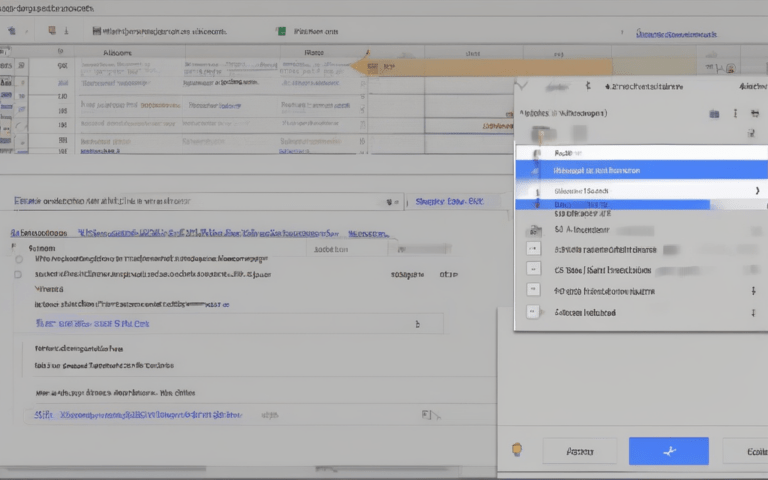
- Sign in to admin.google.com with a Super Admin account.
- Navigate to **Apps** → **Google Workspace** → **Settings for Workspace**.
- Select **Duet AI** from the list of services.
- Toggle the switch to **ON** for the organizational units you wish to cover.
- Configure optional settings:
- Data retention preferences.
- Allowed AI features per app (e.g., email suggestions only, or full suite).
- User consent prompts.
- Click **Save** and allow up to 24 hours for the changes to propagate.
Rolling Out Duet AI to Users and Best Practices
After activation, a thoughtful rollout maximizes adoption:
- Communicate Early: Send an announcement explaining what Duet AI does, its benefits, and any privacy considerations.
- Provide Training: Offer short webinars or interactive guides that demonstrate real‑world use cases—such as generating a meeting agenda in Google Docs or auto‑filling a sales forecast in Sheets.
- Start Small: Pilot the feature with a single department before expanding organization‑wide, gathering feedback to fine‑tune settings.
- Monitor Usage: Use the Admin console’s reporting tools to track adoption rates and identify any misuse.
- Encourage Feedback: Create a channel where users can share tips or report issues, fostering a community of AI‑enhanced productivity.
Troubleshooting Common Issues
Even with careful setup, problems can arise. Here are the most frequent roadblocks and how to resolve them:
- Feature Not Visible: Confirm that the user’s organizational unit is included in the activation scope and that they are on a supported Workspace plan.
- AI Suggestions Disabled: Check the per‑app toggle in the Duet AI settings; it may be turned off for specific apps.
- Performance Lag: Ensure the user’s browser is up to date and that third‑party extensions are not blocking Google scripts.
- Data‑Privacy Concerns: Review the data usage policy page in the Admin console and adjust retention or opt‑out options as needed.
- Persistent Errors: Use the “Report a problem” link inside any Workspace app to send logs directly to Google support, referencing the Admin console’s troubleshooting guide.
Conclusion
Enabling Duet AI in Google Workspace transforms routine tasks into intelligent, time‑saving actions, empowering teams to focus on higher‑value work. By first confirming eligibility, then methodically activating the service through the Admin console, you lay a solid foundation for organization‑wide adoption. A phased rollout paired with clear communication and training ensures users feel confident leveraging AI features, while proactive monitoring and troubleshooting keep the experience smooth and secure. With these steps in place, your organization can fully harness Duet AI’s capabilities—drafting sharper emails, building smarter spreadsheets, and delivering more compelling presentations—all within the familiar Google Workspace environment.