
Introduction
In the age of social media, static images are no longer enough to capture attention; motion‑based visuals like cinemagraphs bridge the gap between a still photograph and a full‑blown video. A cinemagraph is a carefully crafted loop where a single element moves while the rest of the frame remains frozen, creating a hypnotic, eye‑catching effect. Adobe Photoshop—with its timeline, masking tools, and export options—offers everything you need to turn ordinary footage into a polished cinemagraph without learning a separate animation program. This tutorial walks you through each stage of the process, from selecting the right clip to fine‑tuning the loop and exporting a lightweight file ready for web or mobile use.
Preparing Your Source Video
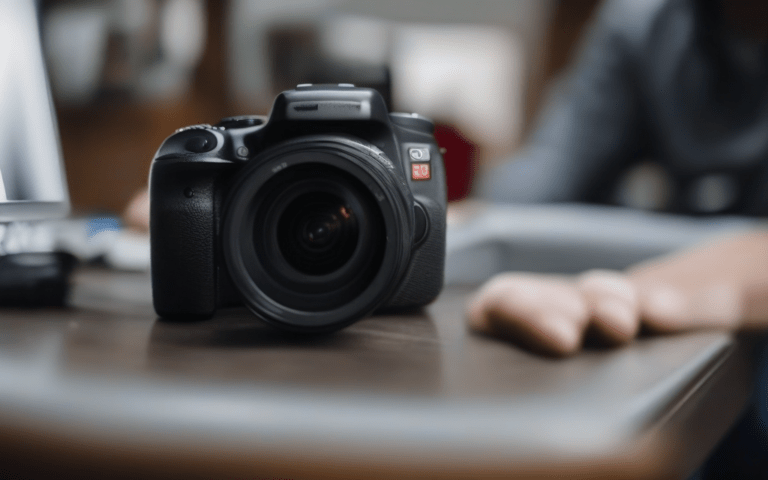
Before you dive into Photoshop, choose a clip that contains a clear, repeatable motion (e.g., a flickering candle, flowing water, or a gentle breeze). The ideal length is 3–5 seconds; longer footage only adds unnecessary frames and file size. Follow these steps:
- Shoot in high resolution (at least 1080p) to retain detail after cropping.
- Use a tripod to keep the camera steady; any camera shake will break the illusion of a static scene.
- Export the clip as an MP4 or QuickTime file with a constant frame rate (24 fps or 30 fps works best).
- Import the video into Photoshop via File → Import → Video Frames to Layers, selecting Limit To Every 2 Frames if the clip is very smooth, to keep the layer count manageable.
Isolating the Still Frame
Once the video layers are in Photoshop, you need a single frame that will serve as the frozen background. Scrub through the timeline and pick a frame where the moving element is at a natural position (e.g., the candle flame at its peak). Duplicate this frame to the bottom of the layer stack and rename it “Background.” Then:
- Create a mask on the top moving layers by selecting them, clicking the Add Layer Mask icon, and painting with a black brush over areas you want to stay still.
- Refine the mask edges using Feather (1–2 px) to avoid harsh borders.
- If the motion involves transparency (like smoke), use the Pen Tool to draw a precise path around the moving element, convert it to a selection, and apply it to the mask.
Creating the Seamless Loop
A convincing cinemagraph requires a loop that repeats without a noticeable jump. Photoshop’s timeline makes this straightforward:
- Open the Timeline panel (Window → Timeline) and set it to Frame Animation.
- Hide the “Background” layer on the first and last frames, leaving only the moving layers visible.
- Duplicate the first frame and place it at the end of the sequence, then hide the moving layers on this final frame—leaving only the static background.
- Adjust the frame delay (typically 0.04 s) to achieve a smooth playback speed.
- Play the animation to spot any jitter; if needed, trim a few frames from the start or end to align the motion perfectly.
Exporting and Optimizing for Web
After perfecting the loop, export the cinemagraph in a format that balances quality and file size. The most common choice is an animated GIF, but MP4 or WebM can offer better compression for larger motions.
- Choose File → Export → Save for Web (Legacy). Set the preset to GIF 128 Dithered and enable Looping Options → Forever.
- Reduce the color depth to 64–128 colors if the scene is simple; for richer palettes, keep 256 colors but watch the file size.
- Alternatively, export as File → Export → Render Video, select H.264, and check Web Optimized for a lightweight MP4.
- Test the final file on multiple devices to ensure the loop remains seamless and the motion stays crisp.
Conclusion
Creating a cinemagraph in Photoshop blends the precision of photo editing with the fluidity of video animation, allowing you to produce captivating visual stories that stand out on any platform. By selecting a steady, well‑lit source clip, isolating a clean still frame, crafting a seamless loop, and exporting with the right settings, you can transform ordinary footage into a dynamic masterpiece that engages viewers without overwhelming them. Master these steps, experiment with different motions, and soon you’ll have a library of eye‑catching cinemagraphs ready to boost your brand’s visual impact and social media reach.