
Introduction
Google Forms has become a go‑to tool for educators, trainers, and anyone who needs to collect answers quickly. While the platform automatically grades multiple‑choice and checkbox questions, it does not show a clear percentage score for each respondent. By linking the form to a Google Sheet and applying a simple formula, you can turn raw point totals into a polished percentage that’s easy to read and share. This article walks you through every step—from configuring the quiz to writing the exact spreadsheet expression—so you can present a professional‑looking result without manual calculations. Whether you’re running a classroom test, a certification exam, or a corporate assessment, you’ll learn how to automate the percentage score and keep your data organized.
Setting Up Your Google Form for Scoring
Before any calculations can happen, the form must be configured to assign point values. Open your form, click the ⋮ menu on each question, and choose Answer key. Here you can:
- Mark the correct answer(s).
- Enter the number of points each question is worth.
- Enable Release grade if you want respondents to see their score immediately.
Make sure every question that contributes to the final grade has a point value; unanswered or ungraded items will be ignored in the total.
Linking Form Responses to Google Sheets
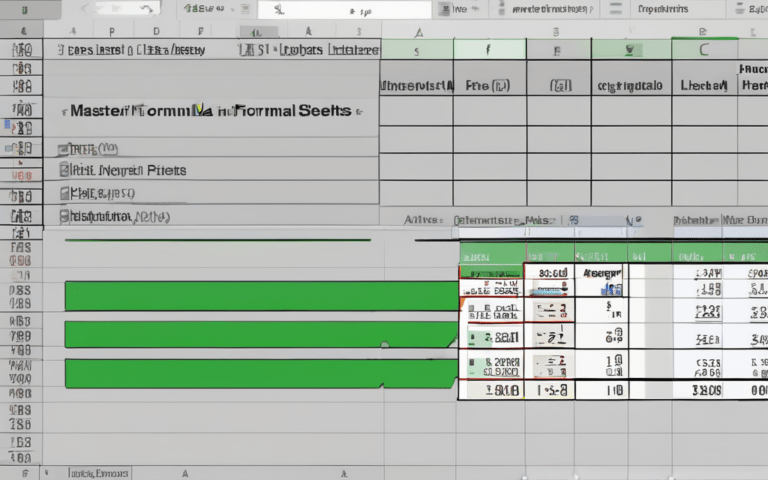
Once the quiz is live, click the Responses tab and select the green Sheets icon. Google will create a new spreadsheet (or let you choose an existing one) that records every submission. The sheet contains columns such as:
- Timestamp – when the response was submitted.
- One column per question, showing the answer chosen.
- Score – the raw point total calculated by Forms.
These columns are the foundation for our percentage formula. Keep the sheet open; you’ll add a new column called “Percentage”.
Creating the Percentage Formula
In the Google Sheet, locate the column that holds the maximum possible points for the quiz. If you have a fixed total (e.g., 50 points), you can type that number directly. For a dynamic total that updates when you change point values, add a helper row:
- In a new row, use =SUM(range of point values) to compute the maximum score.
- Give this cell a name like MaxScore via Data → Named ranges.
Now, in the first cell of the “Percentage” column (assume row 2), enter:
=IFERROR(Score/MaxScore, 0)*100
Replace Score with the actual column header (e.g., C2) and MaxScore with the named range or absolute reference (e.g., $D$1). Drag the formula down to apply it to all rows. The result is a numeric value representing the percentage; you can format the column as Number → 1 decimal place and add a % custom format for a clean look.
Displaying Results to Respondents
If you want participants to see their percentage immediately after submission, return to the Form editor, go to Settings → Presentation, and enable Show link to submit another response. Then, in the Responses tab, click Individual and copy the Response summary link. Paste that link into the confirmation message, adding a placeholder like {%percentage%}. Unfortunately, Forms does not support dynamic placeholders for custom calculations, so the common workaround is to send a follow‑up email using Google Apps Script:
- Write a script that triggers on form submit.
- Read the calculated percentage from the Sheet.
- Send an email to the respondent with the personalized score.
This approach keeps the experience seamless and gives each learner a clear, professional result.
Troubleshooting Common Issues
Even a well‑designed setup can hit snags. Here are the most frequent problems and how to fix them:
- Incorrect total points – Verify that every question’s point value is entered in the Form’s answer key; missing points will lower the maximum.
- #DIV/0! error – Occurs when MaxScore is zero or blank. Ensure the helper cell contains a valid number and that the named range points to the correct cell.
- Formula not copying down – Use ArrayFormula instead of dragging: =ArrayFormula(IF(LEN(A2:A), ScoreRange/MaxScore*100, )) to auto‑apply to new rows.
- Percentage shows as a decimal – Apply a custom number format: 0.0% via Format → Number → Custom number format.
By checking these items, you can maintain an accurate and reliable scoring system.
Conclusion
Calculating a percentage score for a Google Forms quiz is a straightforward process once you connect the form to a Google Sheet and apply a clear formula. Starting with proper point assignment, you ensure the raw Score column reflects true performance. Linking responses to Sheets gives you full control over data, allowing you to compute percentages dynamically, format them for readability, and even automate personalized feedback via email. Common pitfalls—such as missing point values or division errors—are easy to resolve with a few checks and the right use of ArrayFormula. Armed with these steps, you can turn any Google Forms quiz into a polished assessment tool that delivers immediate, percentage‑based results to both educators and learners alike.