
Introduction
In today’s fast‑paced business environment, sending personalized messages to large groups can feel like a daunting task. Fortunately, Outlook (or Microsoft 365) users can harness the power of Google Sheets to streamline this process through mail merge. By linking a spreadsheet of contacts with Outlook’s robust email client, you can automatically generate and dispatch customized emails—saving time, reducing errors, and maintaining a professional touch. This article walks you through every step, from preparing your data in Google Sheets to configuring the mail‑merge add‑on, sending the campaign, and monitoring results. Whether you’re reaching out to clients, prospects, or internal teams, the method described here will enable you to scale personalized communication without leaving your familiar Outlook interface.
Why Combine Outlook with Google Sheets?
Outlook offers reliable delivery, calendar integration, and corporate‑grade security, while Google Sheets provides a flexible, cloud‑based platform for managing contact lists. Merging the two gives you the best of both worlds:
- Real‑time collaboration: Multiple team members can edit the spreadsheet simultaneously, ensuring the latest data is always used.
- Dynamic fields: Pull in custom columns (e.g., First Name, Company, Last Purchase) to personalize each message.
- Seamless Outlook delivery: Leverage Outlook’s formatting, signatures, and tracking features for a professional look.
Preparing Your Google Sheet for Mail Merge
Before you start the merge, your spreadsheet must be clean and structured. Follow these steps:
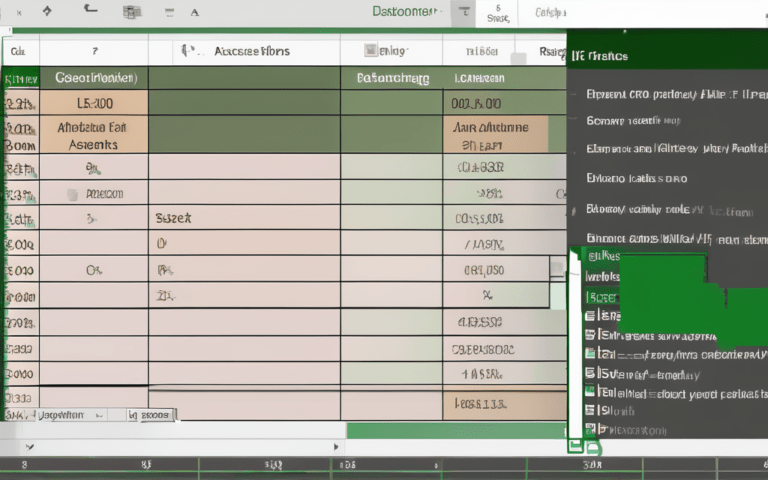
- Header row: Use clear, single‑word headers such as Email, FirstName, LastName, Company. Outlook reads these as merge fields.
- Data validation: Remove duplicate email addresses and verify that each cell contains the correct data type (e.g., plain text for names, proper email format for addresses).
- Optional columns: Add any extra information you want to include in the email body—like personalized discount codes or event dates.
- Save a backup: Duplicate the sheet before running the merge so you can revert if something goes wrong.
Setting Up the Mail Merge Add‑on
Google Workspace Marketplace offers several add‑ons, but the most popular for Outlook users is “Mail Merge with Attachments”. Installation and configuration are straightforward:
- Open your Google Sheet, click Extensions → Add‑ons → Get add‑ons, and search for “Mail Merge with Attachments”.
- Click Install and grant the required permissions (access to Gmail, Drive, and your spreadsheet).
- After installation, return to Extensions → Mail Merge with Attachments → Start Mail Merge.
- In the sidebar, select Outlook as the sending service. You’ll be prompted to sign in to your Microsoft account and authorize the connection.
- Map your spreadsheet columns to the merge fields Outlook will recognize (e.g.,
{{FirstName}}→ FirstName column).
Sending and Tracking Personalized Emails
With the add‑on configured, you’re ready to launch the campaign:
- Draft your email: Compose the message directly in Outlook, inserting merge tags like
{{FirstName}}where personalization is needed. - Choose recipients: In the add‑on, select the rows you wish to email. You can filter by criteria (e.g., only contacts from a specific region).
- Test run: Send a single test email to yourself to verify formatting and field substitution.
- Execute the merge: Click Send. The add‑on will generate individual emails for each row and push them through Outlook’s outbox.
- Monitor results: Use Outlook’s “Sent Items” folder and read‑receipt features, or enable tracking within the add‑on to see open and click metrics.
Best Practices and Troubleshooting
Even a well‑planned merge can encounter hiccups. Keep these tips in mind:
- Limit email volume: Outlook imposes daily sending limits for Microsoft 365 accounts; stagger large campaigns to avoid throttling.
- Watch for formatting issues: Complex HTML in Outlook may render differently across devices; test on both desktop and mobile.
- Handle bounced emails: Export bounce reports from Outlook and update your Google Sheet to remove invalid addresses.
- Secure sensitive data: Never store passwords or confidential information directly in the spreadsheet; use protected columns or separate secure databases.
- Backup regularly: Export your sheet as CSV before each merge to preserve a snapshot of the data used.
Conclusion
Mail merging with Outlook and Google Sheets empowers you to deliver highly personalized communications at scale, blending Outlook’s reliable delivery infrastructure with the collaborative flexibility of Google’s spreadsheet environment. By preparing clean data, installing a compatible add‑on, and following a systematic workflow—from drafting the email to tracking its performance—you can automate routine outreach while maintaining a tailored touch. Remember to respect sending limits, test thoroughly, and keep your contact list up to date to maximize deliverability and engagement. With these practices in place, you’ll turn a time‑consuming manual task into an efficient, repeatable process that supports your business’s growth and relationship‑building goals.